
Computer Keeps Restarting Without Warning: Common Causes and Troubleshooting Tips
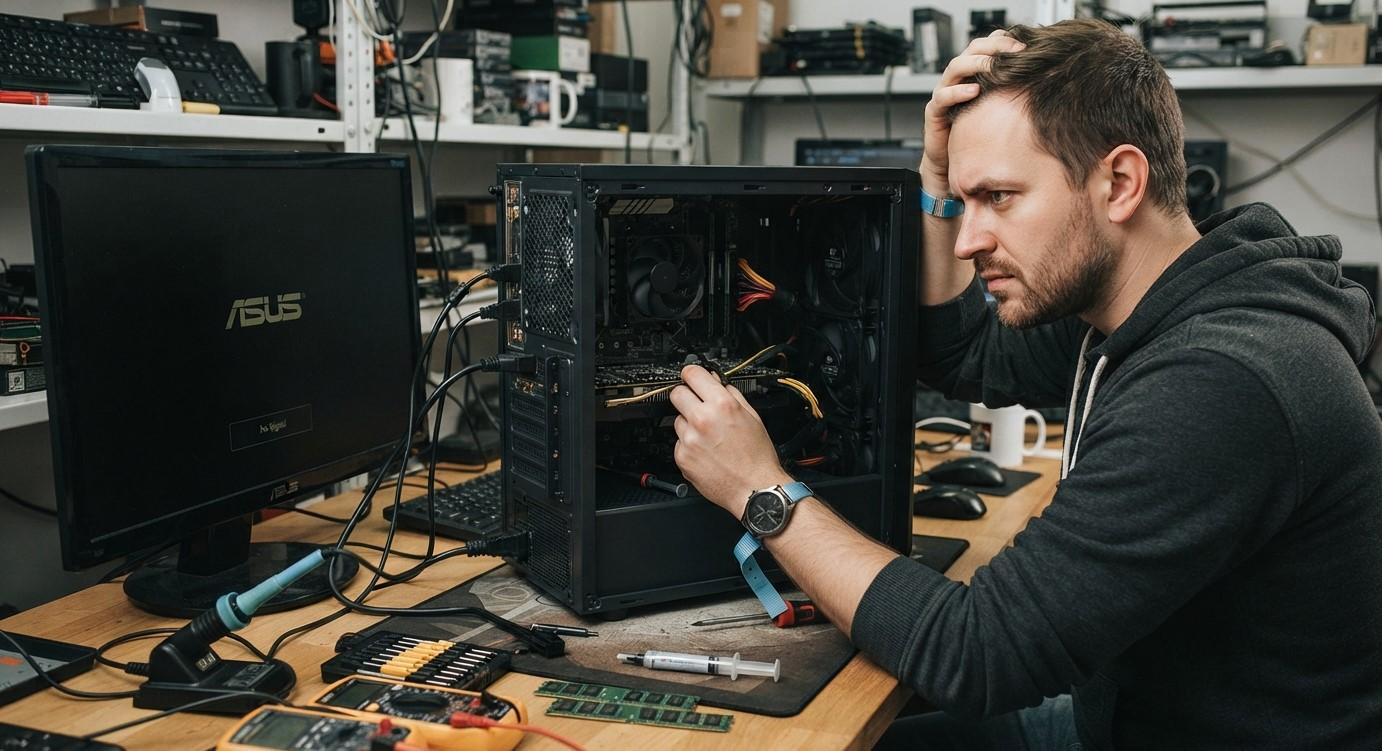
A computer that keeps restarting without warning can interrupt your work, cause data loss, and make everyday tasks frustrating. This problem may be related to overheating, faulty hardware, software errors, or power supply issues. Identifying the cause early can help prevent further complications. Mobile Device Techs shares practical technology tips and troubleshooting guidance for users exploring phone repair Douglasville and other device-care solutions. Whether you use a desktop or laptop, knowing how to address unexpected restarts can help keep your technology running smoothly. For more helpful advice, visit Mobile Device Techs.
Table of Contents
-
Common Reasons a Computer Restarts Unexpectedly
-
Troubleshooting Tips to Stop Random Restarts
-
When to Seek Professional Help
-
Frequently Asked Questions
-
Conclusion
1. Common Reasons a Computer Restarts Unexpectedly
A computer may restart automatically for several reasons. Understanding these common causes is the first step toward fixing the issue.
Overheating
Excessive heat can cause a computer to restart or shut down to protect its internal components. Dust buildup, blocked air vents, or a malfunctioning cooling fan can prevent proper airflow.
Faulty Power Supply
An unstable power supply may interrupt the electricity reaching your computer. Damaged power cables, loose connections, or a failing desktop power supply can cause unexpected restarts.
Outdated or Corrupted Drivers
Drivers help your operating system communicate with hardware components. Outdated or corrupted drivers may create system conflicts that lead to crashes and automatic restarts.
Windows Updates or Software Errors
Sometimes, incomplete updates, incompatible applications, or operating system errors can cause unexpected restarts. Newly installed software may also conflict with existing programs.
Faulty RAM or Other Hardware
Damaged memory modules, storage problems, or other failing hardware components can make a computer unstable. These issues may cause freezing, blue screen errors, or repeated restarts.
2. Troubleshooting Tips to Stop Random Restarts
Try these practical steps to identify and resolve the problem.
Check Your Computer's Temperature
Make sure your computer has enough ventilation. Keep air vents clear and place the device on a hard, flat surface. If the computer becomes unusually hot, inspect the cooling system for dust buildup or fan problems.
Inspect Power Connections
Check whether the power cable is securely connected. If you use a desktop, inspect the external power cable for visible damage. Avoid using damaged cables or overloaded power outlets.
Install Available Driver Updates
Open your computer's device management settings and check for driver updates, especially for graphics and chipset components. Download updates from trusted manufacturer sources.
Review Recent Software Changes
If the restarting began after installing a new application or update, check whether that change may be responsible. Uninstall recently added software if necessary, or use an appropriate system recovery option.
Run a Memory Diagnostic
Faulty RAM can cause random system crashes. Use your operating system's built-in memory diagnostic tool to check for possible memory problems.
Scan for Malware
Malicious software can affect system stability. Run a full scan using a trusted security program and remove any detected threats.
Back Up Important Files
Before performing major troubleshooting or system repairs, back up important documents, photos, and other files. This helps protect your data if the computer becomes unusable.
3. When to Seek Professional Help
If your computer continues restarting after basic troubleshooting, the problem may involve failing hardware or a deeper operating system issue. Seek professional assistance if you notice:
-
Repeated blue screen errors.
-
Unusual clicking sounds from the computer.
-
Frequent overheating or fan problems.
-
Random restarts even when performing simple tasks.
-
Failure to start properly after restarting.
Avoid opening internal components unless you have the necessary experience and tools.
4. Frequently Asked Questions
Why does my computer restart randomly?
Common causes include overheating, power supply problems, faulty RAM, outdated drivers, and software conflicts.
Can overheating cause automatic restarts?
Yes. Some computers restart or shut down automatically when internal temperatures become dangerously high.
Can a Windows update cause unexpected restarts?
Yes. Incomplete updates, incompatible drivers, or software conflicts can sometimes affect system stability.
How do I prevent my computer from restarting unexpectedly?
Keep your system updated, maintain proper ventilation, check power connections, scan for malware, and monitor hardware performance.
5. Conclusion
A computer that keeps restarting without warning may have overheating problems, unstable power connections, outdated drivers, software conflicts, or faulty hardware. Checking temperatures, updating drivers, reviewing recent software changes, and testing memory can help identify the cause. If the issue continues, professional diagnosis may prevent further damage and data loss. Mobile Device Techs offers practical technology guidance for users searching for phone repair Douglasville information and helpful device-care advice. For more troubleshooting tips and useful technology resources, visit Mobile Device Techs.

 Polish
 English
 Arabic
 French
 Spanish
 Portuguese
 Deutsch
 Turkish
 Dutch
 Italiano
 Russian
 Portuguese (Brazil)
 Greek